
Teachers want to be able to record the audio that's online, but doesn't have a way to download the audio file to cut it and edit it to their class needs. Blackhole is an Audio Extension that allows Quicktime to hear the audio internally, providing a better quality sound and no chance of background noise when compared to pressing play on their computer and recording it back from the computer's microphone.
Step 1.
Download Blackhole: https://existential.audio/blackhole/
Step 2.
Install Blackhole .pkg. This will require the computer to restart.
Step 3.
Use Spotlight to search for and open "Audio Midi Setup".
Step 4.
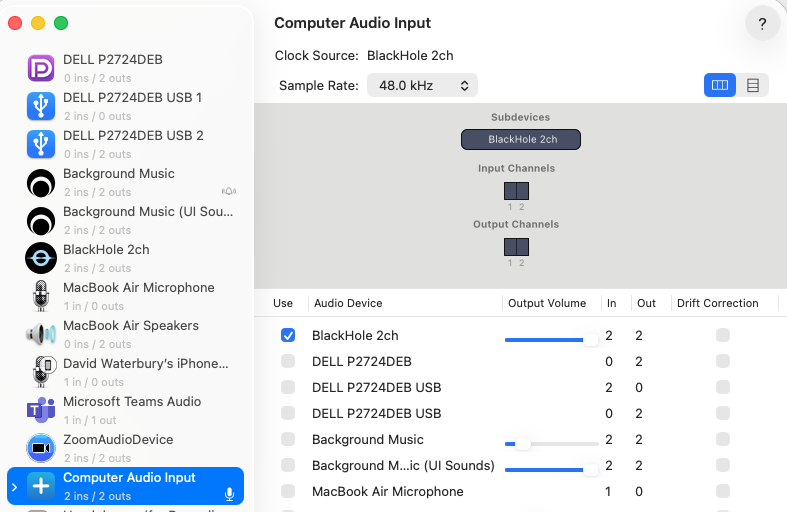
Click the "+" symbol on the bottom left corner. Select "Create Aggregate Device".
Rename it "Computer Audio Input".
Check On "BlackHole 2ch"
Step 5.
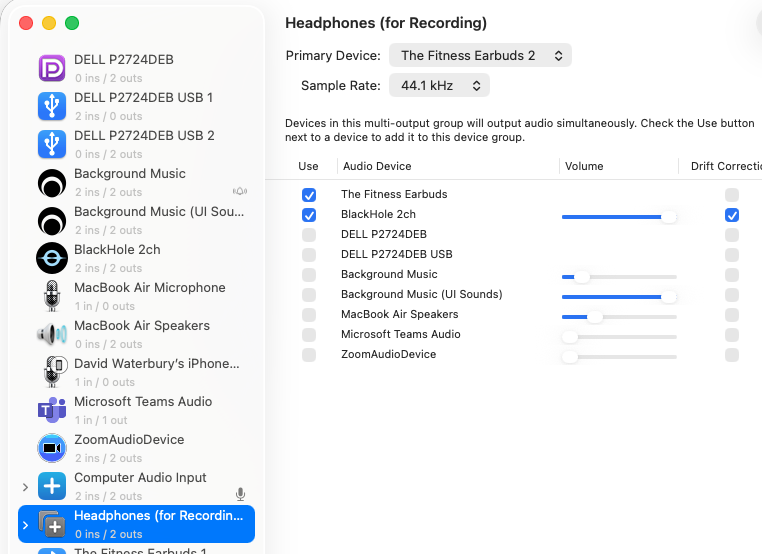
Click the "+" symbol on the bottom left corner. Select "Create Multi-Output Device".
Rename it "Headphones (for Recording)".
Check on "Headphones" and then "BlackHole 2ch" (in this order).
This will allow you to hear the audio through your headphones while playback is occurring.
Step 6.
Open System Preferences --> Sound
Output: Select "Headphones (for Recording)"
Input: Select "Computer Audio Input"
Step 7.
Open QuickTime Player.
Go to File-->New Audio Recording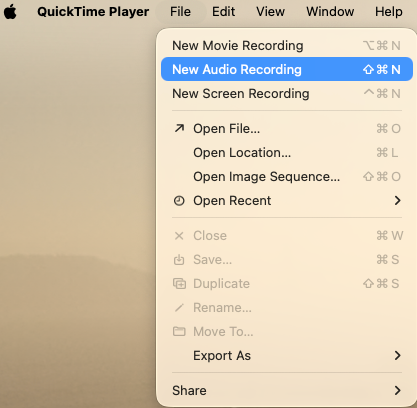
Step 8.
Confirm the audio level is all the way down (it will cause reverb).
Select the drop down next to the Record Button and confirm "Computer Audio Input" is selected.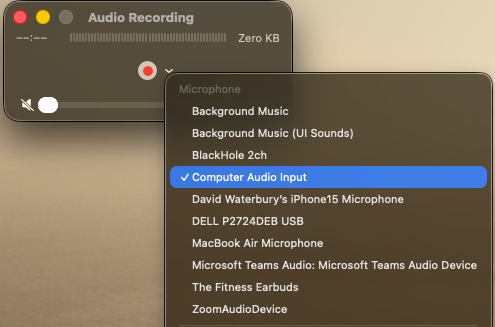
Step 9.
Click the Record Button.
Click "Play" on whatever Audio file you want to record.
You will see the audio visual in QuickTime Audio Recording to confirm it's hearing it.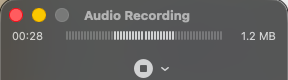
Step 10.
After the recording is complete, click the Record Button to stop the recording.
Click File-->Save and save the recording locally to your computer.